
U Drive to One Drive Migration
The Plan
We will be working with departments on a scheduled timeline to bulk migrate over their staff U Drives to their OneDrives. We have started the migration project working with staff who have large U Drives and plan to start the bulk migration in mid-December with the plan to have all migrations completed by January 31, 2027. In the next few weeks, IT Project Portfolio Managers will reach out to department contacts to facilitate any questions or concerns. We have already been working with individuals who have large U Drives to assist them with migrating to OneDrive.
Staff are encouraged to clean out any redundant, obsolete, and trivial (ROT) files prior to the move from their U Drives, as it will assist in the overall bulk migration time it takes to move large volumes of data.
Note that if you were hired after December 23, 2023, you were not assigned a U Drive, and you have been using your OneDrive to save your files.
Cutover Schedule and Expected Steps
Departments will be given advance notice to give you a couple of weeks to clean out any ROT prior to their scheduled migration. The migration will be during off-peak hours, and you will be notified when the migration has been completed. You will then have a week after the migration to validate your data by confirming folder structures and file integrity. If there are missing files, you will then follow the steps below to manually transfer the missing folders and/or files. At the end of the week, legacy U: Drive shares will only have read-only status for a two-week grace period. We will then begin decommissioning U Drives.
How do I Migrate U Drive Files to OneDrive?
You can move your files from your U Drive to OneDrive by opening two File Explorer windows and dragging and dropping the files from your U Drive to OneDrive.
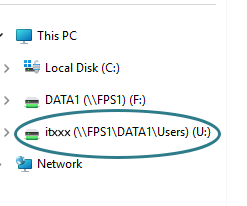
Open File Explorer and locate your U Drive.
Open a second instance of File Explorer window and navigate to your OneDrive folder. If you do not see your OneDrive, follow the guidance at Set Up and Install OneDrive for the First Time.
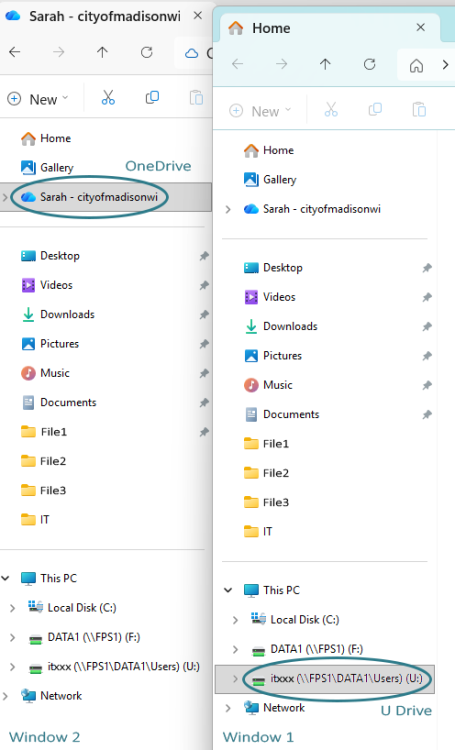
Select the files or folders you want to move from your U Drive to OneDrive, or if you want to move them all at once, press Ctrl + A to select everything to move.

Drag and drop them into the OneDrive folder.

- Wait for the blue syncing arrows to become green check marks, indicating the upload is complete.
Training Resources
Live Virtual: Introduction to Microsoft OneDrive Training
This training covers when to use OneDrive, how to manage files and folders, and how to collaborate, sync, and back up your data. The file management and collaboration skills you learn here also apply to Microsoft Teams and SharePoint.
Recorded Version: Access an On-Demand Recorded version of this session if you are unable to attend an upcoming live session. The training session is 1 hour, 11 minutes.
OneDrive Resources
- Setup and Install OneDrive(external) – IT KnowledgeBase Article
- Microsoft OneDrive Guidebook (opens in a new window)
- Where to Store Your Stuff(external) – IT KnowledgeBase Article